Node-ordered look dev · OFX · Resolve · Fusion · Nuke

OpenDRT — free & open-source →

Shape every hue.
Build the whole look.
Node by node.

Look Dev Tools is my six-in-one look development suite: the tools I actually grade with, named in the order you build a look. The number is the node order, the letter is the order you work them. Chain them down your node graph, or drop in just the one you need. Not a LUT pack. A real look-development pipeline.

6node-ordered tools
3working spaces
16input gamuts (6A)
Look preview Live look sim
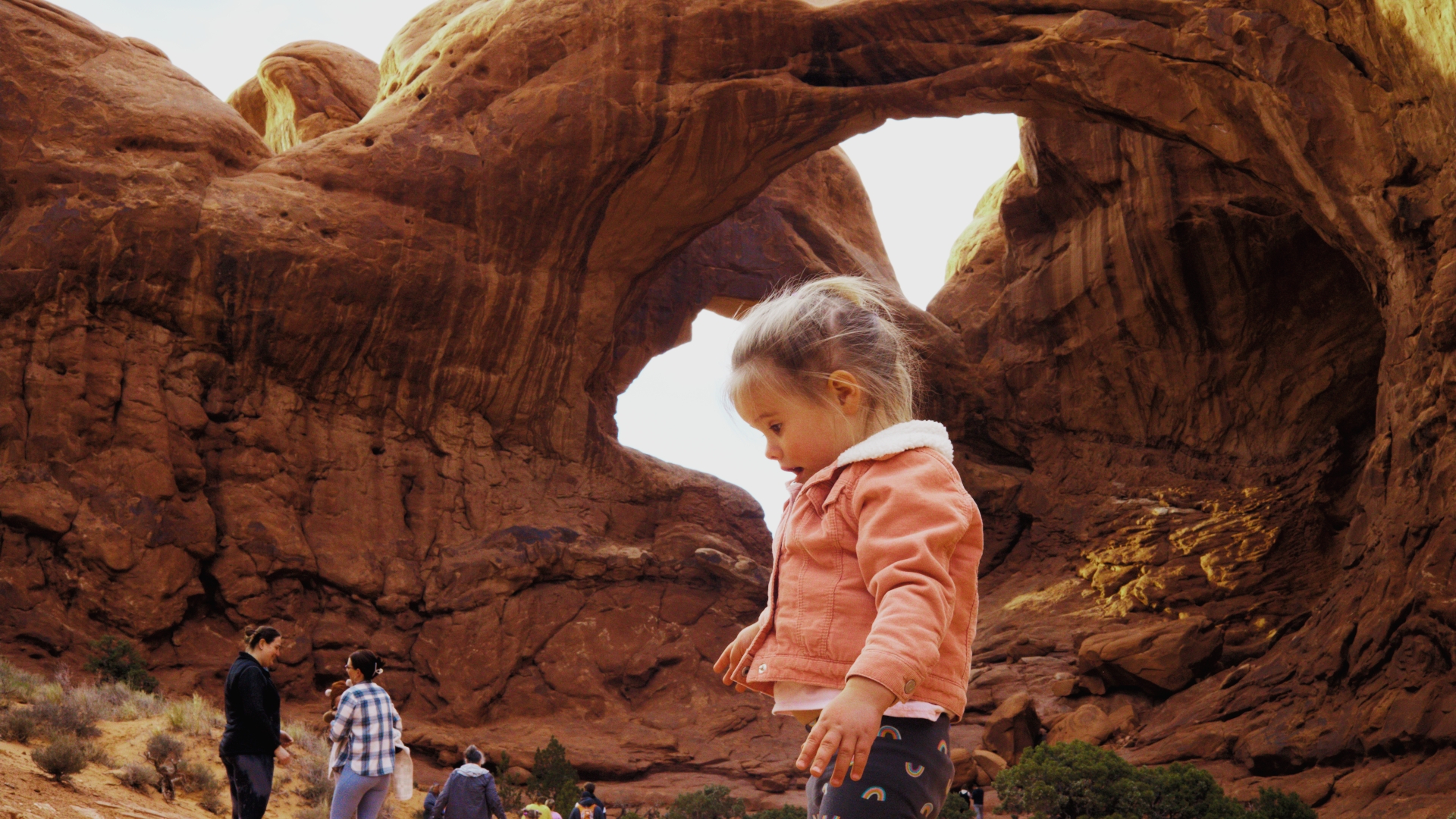
Log / ungraded reference frame
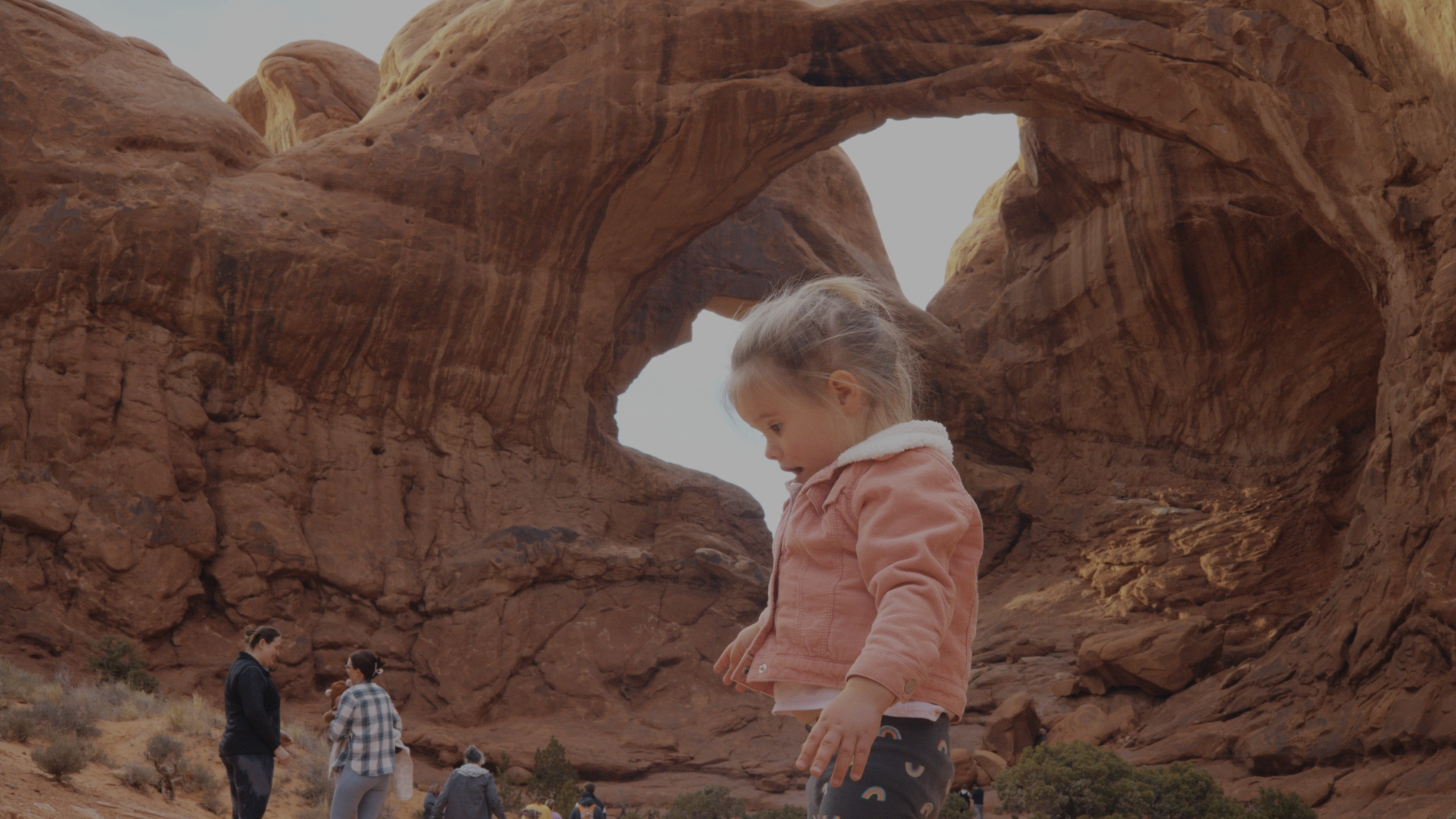
Look Dev Tools graded look preview
Clean Neutral
Graded Log

Sample looks as starting points. Your footage and your own node chain will land differently. Previews use a live color sim until real exports drop in.

Why node order matters

A look is built in an order. So are these tools.

Great looks aren't one slider, they're a sequence. You place your hues first, then dial saturation, add density so rich colors read rich instead of neon, set your contrast, lay in a split-tone, and finally render the whole thing to a display transform. Do it out of order and every stage fights the last one.

Look Dev Tools bakes two orders into the names. The number is the node order: where each tool sits in your graph, 1 at the top down to 6 at the display. The letter is the order you work them, A through F, as you dial the look in. Chain them down the node tree, or reach for any single tool on its own.

1F
Hue

Rotate your hues into place.

2D
Saturation

Expand your chroma, per hue.

3E
Density

Build rich colors, not neon.

4B
Contrast

Funnel it through a contrast curve.

5C
Split-tone

Tint shadows and highlights independently.

6A
Display

Render the look to a calibrated screen.

The pipeline · 1F → 6A

Six nodes, in the order you'd build a look.

Each tool is a GPU node: Metal on macOS, CUDA on Windows and Linux, identical math on both. Chain them in order, or use any one standalone.

1F · Hue

Hue Remix Pro

Dual-engine, per-hue remap and shift. The foundational hue-shaping node.

Remap and shift hues with precise per-hue targeting, with four engines to choose from: Tetrahedral, Chen Spherical, Oklab and Gravity. Work in ACEScct, DaVinci Intermediate or LogC3, grouped into Hues, Masters, Guards and Setup.

Why it matters

Hue is the foundation of a look. Place it first so everything downstream targets the right colors.

2D · Saturation

Hue Saturation Pro

Per-hue saturation with Upper/Lower Luma band targeting.

Limit saturation changes to a luminance range, and invert the band. Two engines, Tetrahedral and Norm Spherical, with a per-hue toggle and the same Masters / Hues / Guards / Setup grouping.

Why it matters

Pull saturation from just the highlights, or just the shadows, without a separate qualifier.

3E · Density

Hue Density Pro

Per-hue density: the perceptual thickness of a color.

Density is the perceptual richness of a color, distinct from saturation. Add the "denser dye" feel to specific hues without just cranking chroma. Engines: Tetrahedral and Norm Spherical.

Why it matters

Density is the move that makes saturated color read as rich, not garish.

4B · Contrast

Simple Contrast

Clean contrast with a pivot, in your working space.

A filmic tone curve, not a crush. Two curve models, Reinhard and Kumaraswamy, plus a live Diagnostic Overlay (Off, Curve, Ramp, or Curve plus Ramp) so you can see the curve you're applying.

Why it matters

Reshape tonality globally after the color work, with a real filmic curve instead of a crush.

5C · Split-tone

SplitTone

Independent shadow and highlight tinting, two models.

Two models: the original SplitToneX and a film-like Simple Split with a bipolar pinch puck, across Hue, RGB and hybrid engines. Comes with a dedicated editor panel and a full preset system (factory plus your own).

Why it matters

The finishing tint on a look that's already shaped and contrasted, classic or subtractive and filmic.

6A · Display · Flagship

OpenDRT

A full display rendering transform. Free & open-source (GPL-3.0).

Our port of Jed Smith's open-source OpenDRT. Pick from 16 input gamuts, drive the look with Look + Tonescale presets, then optionally unlock creative modules (High/Low Contrast, Purity, Brilliance, Hue Shift RGB + CMY, Hue Contrast, and beta filmic / projector simulation), each with a persistent-value lock so changing presets won't wipe your manual work.

Why it matters

This is where your look meets a calibrated display: a modern, neutral, filmic DRT with deep per-hue control, and it costs nothing.

Chain them in order, or use just one. Drop 1F → 6A onto serial nodes to build a look from hue to display transform, or reach for any single tool on its own. Each node stands alone.

The toolkit

My tried-and-true look dev tools.

These are the tools I actually reach for on real grades, the same look dev moves I've trusted for years, now wired straight into your node graph. The hue tools carry multiple per-hue engines so you can pick the math that behaves best on a given image. Everything runs in the working space your timeline already lives in (ACEScct, DaVinci Intermediate or ARRI LogC3) and renders on Metal (macOS) or CUDA (Windows/Linux) with verified-identical results across platforms.

  • Pick your engine. 1F gives you Tetrahedral, Chen Spherical, Oklab and Gravity; 2D and 3E give you Tetrahedral and Norm Spherical. Same control, different behavior, choose per image.
  • Match your timeline. Work in ACEScct, DaVinci Intermediate or LogC3, with no forced round-trips.
  • Same look, every machine. Metal and CUDA paths are math-identical, so a grade built on a Mac lands the same on a Windows or Linux box.
Your node graph number = node order · letter = work order
Log / scene-linear in
1F work F
Hue RemixRotate your hues
2D work D
Hue SaturationExpand your chroma
3E work E
Hue DensityBuild rich colors
4B work B
Simple ContrastContrast curve
5C work C
SplitToneTint shadow / highlight
6A work A
OpenDRTDisplay transform
Calibrated display out
Chain 1 → 6 down the tree · work them A → F
Engine · 01

Per-hue engines

Multiple math models per hue tool: Tetrahedral, Chen Spherical, Oklab, Gravity, Norm Spherical. Pick the one that holds up on the shot.

Engine · 02

Working spaces

ACEScct, DaVinci Intermediate or LogC3. Work where your timeline already is, with no forced round-trips.

Engine · 03

GPU parity

Metal and CUDA, verified identical. A grade built on one machine lands the same on every other, cross-platform-safe.

Free & open-source

OpenDRT is free. Forever.

6A. OpenDRT ships inside the suite and as a standalone, fully free and open-source (GPL-3.0): our port of Jed Smith's OpenDRT, with the full preset UI and GPU parity on all three platforms. Take it on its own, no subscription required. The rest of the Look Dev Tools suite is the paid pro kit.

Ported from Jed Smith's OpenDRT. Licensed under GPL-3.0.

GPL-3.0 6A

The premium tools

Get Look Dev Tools, and everything else.

Look Dev Tools comes with the whole Tool Box. Become a Happy Little Noder and get every premium tool on the channel (PhotoChemist, Technicolor DRT, Look Dev Tools and more), plus every update and new release. One low annual fee that will never be raised.

OpenDRT is free, always

6A. OpenDRT is free and open-source on its own. A whole set of the Tool Box is free too: grab the Tool Box Manager and start playing today. The premium kit unlocks with a single purchase whenever you're ready.

Happy Little Noders
$47.34/ year

Everything you see on YouTube, plus every update, for less than a single film stock LUT pack.

  • Full Look Dev Tools suite (1F, 2D, 3E, 4B, 5C, 6A)
  • 6A. OpenDRT (also free & open-source on its own)
  • Every premium plugin in the Tool Box (incl. PhotoChemist & Technicolor DRT)
  • All future tools & updates included
  • Mac, Windows & Linux · Resolve, Fusion & Nuke
  • Price locked, never raised
Become a member →
Billed annually · cancel anytime

Getting started

Install in a couple of clicks.

The easiest way in is the Tool Box Manager: it installs Look Dev Tools, keeps it organized, and updates it for you. Works on macOS, Windows and Linux; Resolve, Fusion and Nuke.

Download the Tool Box Manager

Grab the latest release from GitHub and open it. It's your home base for every Dec. 18 tool.

Find Look Dev Tools in the list

Browse the catalog inside the Manager and select Look Dev Tools. The six nodes appear in Resolve's OFX list under Look Dev Tools - Dec. 18 Studios.

Click Install

The Manager drops the OFX bundle into the right place for you, no digging through system folders.

Restart your host

Relaunch Resolve, Fusion or Nuke so it picks up the new plugin, and make sure OFX is enabled. On macOS you may first need to choose Allow Anyway in Privacy & Security.

Apply onto serial nodes in order

Drop 1F → 6A onto serial nodes to build a look, or just the one you need. Set each tool's Working Space to match your timeline.